PDF Reader – PDF Viewer
- 4.2
- Rating
- 100.00M
- Installs
- Free
- Price
 Analysis by App-foxy
PDF Reader – PDF Viewer is the kind of productivity app I reach for when I need to open a document quickly rather than build an elaborate filing system. It is free to install, works on Android devices running version 8.0 or later, and comes from EZTech Apps. The app has grown into a widely used option, with over 100 million installs and an average score of 4.2 from around 523 thousand ratings. Those figures suggest that it has found a practical place on many phones, but they do not remove the need to understand where it helps and where it may feel limited.
My overall impression is that it aims to cover the everyday PDF jobs in one place: reading documents, locating files, and making useful changes when the document allows it. That broad approach is convenient, especially if your phone does not already have a comfortable PDF viewer. At the same time, an all-in-one tool can feel less focused than a specialist reader, cloud-storage app, or full desktop editor. The best experience depends heavily on what you expect to do after opening a file.
Where the first-use experience can become confusing
The first obstacle is often not the document itself but finding it. PDFs may arrive through email, messaging apps, a browser download, or a file manager, and each source can place the file in a different folder. When I am trying to open a document in a hurry, I prefer starting inside the app and checking its document view before repeatedly tapping the original attachment. This reduces the chance of opening several copies of the same file or accidentally working on an older download.
You May Also Like

 Blood Strike: 2.5 Anniversary
Blood Strike’s Loadouts Turn Every Drop Into a Tactical Gamble
A close look at Blood Strike’s custom loadouts: how fast access to signature weapons reshapes its battle royale rhythm, rewards preparation, and narrows the gap between fights.

 Pandora - Music & Podcasts
Pandora’s Music Is Easy to Start, but Harder to Recover
Pandora’s strength is its low-effort path from a seed to a station. Its weak spot is how much confidence it asks you to place in connection, setup, and quiet recovery.

 8 Ball Pool
 Is Built on Rivalries, Rematches, and Routine
A close look at the rivalries, rematches, shared routines, and unanswered safety questions that turn a quick pool match into a persistent mobile community.

 Samsung Music
’s Quiet Strength Is Playing What You Already Own
Its reach comes less from spectacle than from dependable access to a personal library. That simplicity is both the app’s strongest retention engine and its ceiling.

 AccuWeather: Weather Radar
AccuWeather Review: A Quick, Clear Forecast for Everyday Decisions
For everyday plans, the best forecast is the one you can understand quickly. AccuWeather makes rain timing, radar, and local conditions easy to act on, with a few trade-offs.

 Hill Climb Racing
Why Hill Climb Racing Still Turns Crashes Into One More Run
A tiny car, a bumpy hill and one more upgrade: Hill Climb Racing keeps resurfacing because its simple chaos makes every near-miss feel personal.
More From Our News Desk
View All News


A useful habit is to identify the file by its complete name and location before editing it. A document called “invoice” or “application” may exist in several versions, particularly after downloading it more than once. If the app displays multiple matches, I check the newest-looking copy and open it before making changes. This simple step prevents a common frustration: finishing an edit and then discovering that the wrong copy was shared.
Another point that can catch new users is the difference between reading and editing. Opening a PDF successfully does not necessarily mean every element inside it can be changed like ordinary text in a word processor. A PDF may contain selectable text, scanned page images, fixed formatting, or forms created in different ways. I treat the editing tools as practical helpers rather than a guarantee that every page will behave like an editable document.
The most important early check is whether the document itself is editable in the way you need. If the page is a scan, the app may be able to display it perfectly while offering less flexibility for changing the original words. For a quick annotation or document review, that may be fine. For rebuilding a complex contract or redesigning a long report, a dedicated desktop editor is usually a better fit.
What I check before blaming the viewer
When a PDF looks strange, I first compare it with the same file in another trusted viewer. This is not because PDF Reader – PDF Viewer is necessarily at fault; PDFs can contain unusual fonts, embedded graphics, forms, or layouts that different apps interpret slightly differently. If the appearance changes everywhere, the file is probably the main issue. If only one app shows the problem, then it becomes worth checking the app and device setup.
I also look at the file size and the way it was obtained. A download that stopped early can still appear in a folder, but it may fail during opening or show incomplete pages. Re-downloading from the original source is safer than repeatedly trying to repair a damaged copy. If the document came from a messaging service, I make sure it was saved locally rather than relying on a temporary preview.
For people who mainly read manuals, receipts, tickets, or school handouts, the app is easy to understand once the files are organized. For people who expect advanced document production, the first-use friction is more significant. The interface may offer several actions, but the real question is whether those actions match the structure of the PDF in front of you.
Setup checks that make everyday reading smoother
Because the app supports Android 8.0 and newer, compatibility is broad enough for many older phones as well as current devices. Before judging performance, I would confirm that the phone has enough free storage for both the app and the documents being opened. A PDF viewer can be perfectly functional while the device itself is struggling with low storage, background activity, or an overloaded file folder.
I recommend opening one ordinary PDF immediately after installation, then trying a second document from a different source. This gives a better first impression than testing only a single file. A locally stored report tests basic reading, while a downloaded attachment tests the handoff between another app and the viewer. If only one route fails, the problem may be the source app or the download process rather than the reader.
It is also worth deciding where your working copies belong. I prefer keeping an original untouched and creating a clearly named copy before making edits. This matters when a document is important or needs to be sent back to someone else. A PDF editor can make changes quickly, but a mistaken overwrite is harder to undo than a simple naming convention.
For regular use, I would keep a small folder structure instead of letting every download collect in one place. Separate folders for personal documents, work files, and temporary downloads make the app more useful because the real time saving comes from locating the right file quickly. This is one of the less obvious lessons with document apps: organization outside the viewer often has more effect on convenience than another button inside it.
Handling permissions, downloads, and missing files
If a document does not appear, I do not immediately assume that it has vanished. I check the file manager, the browser’s download area, and the app that originally received the attachment. A PDF can be present under a different folder or filename, especially when a messaging app saves its own copy. Searching by the extension “PDF” can be more productive than searching by a remembered title.
If the app cannot open a file that another app can see, I try opening it through the Android share or open-with action. This avoids relying on an internal document list that may not have refreshed yet. After downloading a new file, closing and reopening the relevant screen can also help the list update. These are basic steps, but they are more reliable than repeatedly tapping a missing entry.
In-app purchases range from $0.49 to $59.99 per item. I would treat any purchase as an optional decision made after testing the free experience, not as part of the setup process. If you only need to read PDFs, the free installation may already cover your main purpose. If you need editing tools regularly, inspect what is available in your own workflow before paying, because the value depends on the kinds of documents you handle.
The Everyone content rating makes the app suitable for a broad audience, including people who simply need a document reader on a shared family device. That does not mean every PDF is suitable for every user, of course; the content comes from the files you open. I still recommend being careful with sensitive documents and choosing the correct file before sharing or modifying it.
Recovering a workflow when something goes wrong
My preferred recovery method is deliberately conservative. First, I stop editing and preserve the original file. Next, I close the document and reopen the saved copy to see whether the change was actually written. Only after confirming that the copy opens normally would I continue. This avoids stacking more edits onto a file that may already be incomplete or incorrectly saved.
If a page appears blank, I scroll away and back, then reopen the document. If the same page remains blank, I compare the file in another viewer. A blank display can come from a rendering problem, but it can also mean that the page is an image, uses unusual content, or was damaged during download. The comparison tells me whether I should troubleshoot the app or replace the file.
When text selection behaves unexpectedly, I check whether the page is made from an image. A scanned document may look like text to my eyes while containing no actual text layer. In that situation, trying to select individual words is not a sensible test of the viewer. I would use the document as a visual reference or return to the source and request a text-based version if editing is essential.
A particularly useful workflow is to separate reading from editing. I read through the entire document first, note the pages that need attention, and then make changes in a second pass. This reduces accidental taps and makes it easier to notice whether the layout has shifted. It is especially helpful with forms, where a small change in one area can affect how the finished page looks when shared.
Sharing the right version
Before sending a changed PDF, I reopen it from the location where it was saved rather than sharing the version still visible on screen. I check the filename, page count, and the specific change I made. This catches the common mistake of sharing the untouched original or an earlier duplicate.
I also avoid using vague filenames after several revisions. Adding a simple description such as “reviewed” or “signed” makes the final document easier to identify later. The app can help me work with the PDF, but it cannot replace a clear naming system. If several people exchange versions, that small discipline saves more time than repeatedly searching through recent files.
If a document fails after editing, I return to the untouched original and make one change at a time. This is a practical way to identify whether a particular element causes trouble. It also prevents losing all progress when one complicated page does not behave as expected.
When the app is not the real cause of the problem
PDF problems are often blamed on the viewer because the viewer is the first place where the problem becomes visible. In reality, the source file may contain missing fonts, unusual page dimensions, password restrictions, damaged objects, or scanned images. PDF Reader – PDF Viewer can be a convenient place to inspect the result, but it cannot guarantee that every document was created cleanly.
For example, a document that opens but prints with misplaced text may have been exported poorly at its source. A form that shows empty fields may have been designed for a particular form engine. A file that takes a long time to display may contain heavy images rather than being slow because of the reader alone. In each case, testing a second viewer and obtaining a fresh copy from the sender gives more useful information than reinstalling immediately.
Device conditions matter too. If several apps are slow, the phone may be short on storage or memory. If only newly downloaded files fail, the network or download source deserves attention. If the same PDF opens normally on another device but not on yours, checking the Android version, available space, and app state is sensible. These distinctions help avoid paying for a different viewer when the underlying issue is the file or phone.
There are also situations where another option is clearly better. I would choose a cloud-storage app when automatic synchronization across several devices is the central need. I would choose a desktop publishing or office tool for complex layout changes, long reports, or demanding conversion work. I would choose a specialist annotation tool if detailed handwriting, markup organization, or professional review is the main task. This app is strongest when convenience matters more than deep specialization.
Who will get the most from it
I think it suits students opening lecture notes, workers checking attachments, families reading forms, and anyone who wants a straightforward PDF utility on an Android phone. It is particularly practical for occasional tasks: reading a ticket, checking an invoice, reviewing a short agreement, or making a modest change before sending a document onward.
It is less suitable for someone whose work depends on precise document production every day. If you need a fully controlled desktop-style layout, extensive collaboration, or a carefully managed archive, the all-in-one approach may feel too general. The same is true if your most important requirement is seamless access to files across several platforms rather than local document handling.
One realistic example is a person receiving a rental form by email while away from a computer. I would download the attachment, open it in the app, inspect each page, make only the necessary changes, save a separate copy, and reopen that copy before sharing it. That workflow is quick and cautious. It does not pretend that a phone is a complete replacement for desktop document software, but it handles the immediate job without unnecessary switching.
My practical verdict after using it as an everyday PDF tool
PDF Reader – PDF Viewer is a sensible free productivity app for people who want one Android destination for common PDF tasks. Its broad availability, Everyone rating, and support for Android 8.0 or later make it approachable, while the large install base shows that the basic idea works for many users. The current version is 3.3.0, and the developer behind it is EZTech Apps.
What I value most is the convenience of having reading and document handling together instead of opening a different tool for every attachment. The app is most convincing when the task is short, the file is standard, and the goal is to inspect or make a practical adjustment. It becomes less convincing when the PDF is a complicated scan, a specialized form, or part of a larger professional publishing workflow.
My advice is to install it if you regularly receive PDFs on an Android phone and want a general-purpose reader with more flexibility than a basic preview. Start with a few real documents, keep originals separate, and test the exact editing workflow you need before considering an in-app purchase. If your files open cleanly and your tasks stay within that everyday range, it can become a useful part of your phone’s toolkit.
My final recommendation: choose it for convenient mobile PDF reading and occasional document work, but keep a specialist alternative in mind for advanced editing, synchronization, or demanding layouts. Its strengths are practical rather than dramatic, and that is precisely why I would recommend it to a friend who wants a dependable PDF companion without turning document handling into a complicated project.
FAQs for PDF Reader – PDF Viewer
01What features does the PDF Reader – PDF Viewer offer?
The PDF Reader – PDF Viewer app provides a comprehensive set of features, including the ability to view, annotate, and manage PDF files. Users can highlight text, add comments, and sign documents. The app also supports night mode for easier reading in low-light conditions, and it provides cloud integration for seamless file access across devices.
02Is PDF Reader – PDF Viewer free to use?
Yes, the PDF Reader – PDF Viewer app is free to download and use with basic features. However, it offers in-app purchases or a premium version that unlocks additional features such as advanced editing tools, ad-free experience, and enhanced cloud storage capabilities. These options provide a more robust user experience for those who need more functionality.
03Does the app support multiple file formats besides PDF?
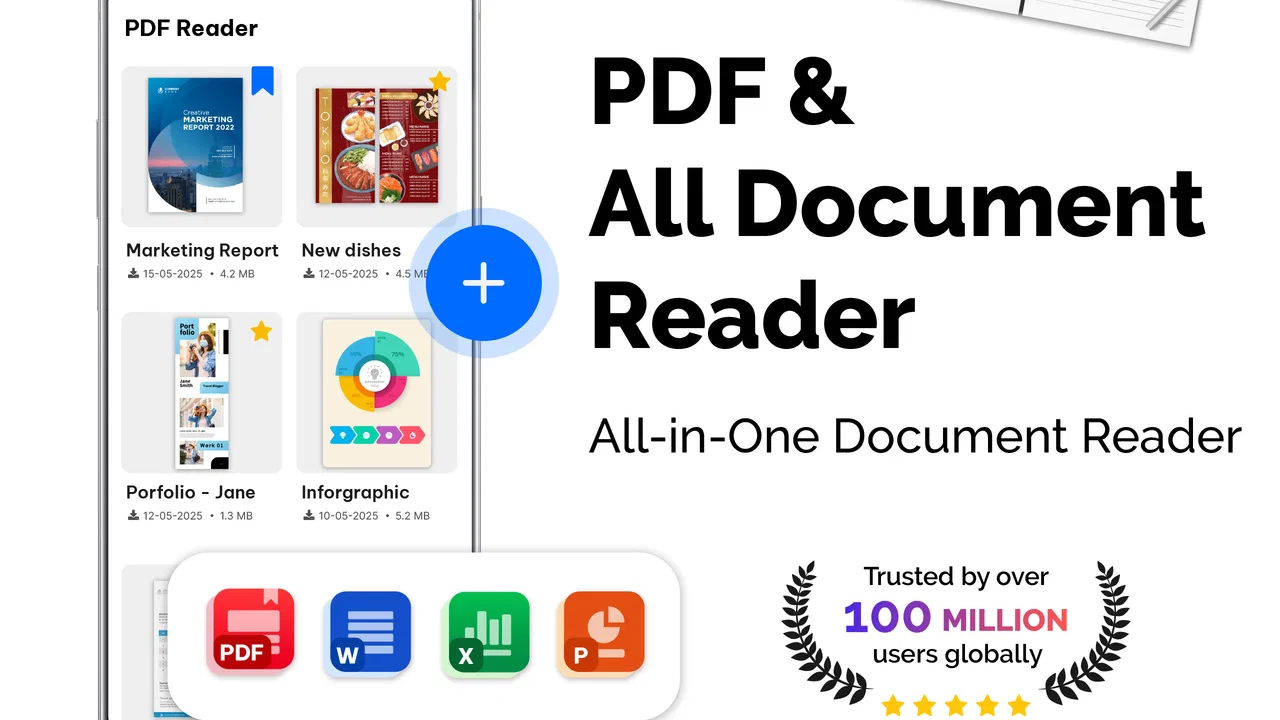
While the primary function of the PDF Reader – PDF Viewer app is to work with PDF files, it also supports a variety of other file formats. Users can open and view formats such as DOC, XLS, and PPT. This makes it a versatile tool for anyone needing to access different types of documents on their mobile device.
04Can I use the PDF Reader – PDF Viewer offline?
Yes, you can use the PDF Reader – PDF Viewer app offline. Once the PDF files are downloaded onto your device, you can easily access and read them without an internet connection. This is particularly useful for users who travel frequently or have limited internet access and need to view documents on the go.
05Is my data secure with PDF Reader – PDF Viewer?
The PDF Reader – PDF Viewer app emphasizes security by incorporating encryption protocols to protect your files. It ensures that sensitive documents are not accessible to unauthorized users. Additionally, the app provides password protection for individual PDFs, offering an added layer of security for personal or confidential documents.
Pros
- Fast and smooth PDF rendering.
- Supports various file formats.
- Intuitive user interface.
- Offline access available.
- Annotations and notes feature.
Cons
- Ads can be intrusive.
- Limited free features.
- Occasional crashes reported.
- No cloud sync option.
- Some features require premium.

PDF Reader – PDF Viewer
Gallery